AI features
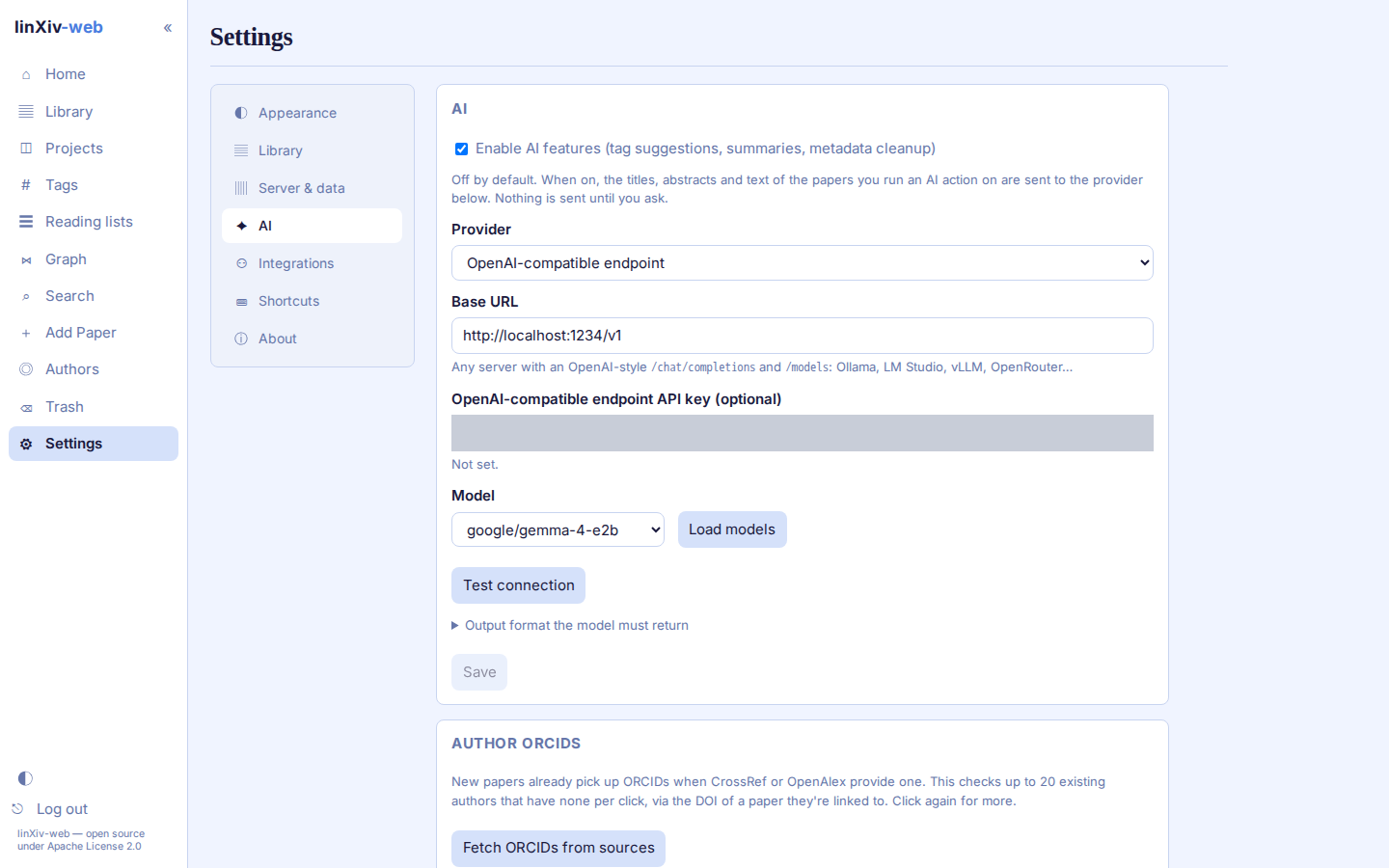
AI features are off by default. To turn them on, open Settings → AI, tick the switch, and pick a provider: Gemini, OpenAI, Anthropic, or an OpenAI-compatible base URL such as http://localhost:1234/v1 for LM Studio. Paste a key (local servers may not need one), Save, then click Load models, pick one, Save again and click Test connection.
| Action | Where | What the model gets | Result |
|---|---|---|---|
| AI Tags | paper page, Library batch panel ("AI tags") | title, categories, abstract, current tags, your existing tag vocabulary | up to 8 tags to tick and add |
| AI summary | paper page | "Abstract only", or "Abstract + PDF text" (first 40 pages, 60k characters) | summary + key points, saved as a note on request |
| AI cleanup | Edit metadata and Library batch metadata, source "AI cleanup" | title, authors, journal | a candidate shown as a field diff; nothing is saved until you approve |
Nothing is sent to the provider until you click an AI button, and AI actions only return previews. You decide what gets saved.
How requests are made
Every request carries a JSON Schema and a valid example reply; Settings → AI shows both. OpenAI and OpenAI-compatible servers get structured output (response_format: json_schema), which also stops "thinking" models such as Qwen from spending the whole token budget on reasoning. A server that rejects structured output is retried with the schema in the prompt only. Anthropic uses a forced tool call.
Requests time out after 90 s, or 300 s for OpenAI-compatible servers, since local models read long prompts slowly.
LINXIV_WEB_AI_ALLOWED_HOSTS limits which hosts the OpenAI-compatible base URL may use. Cloud metadata addresses are always refused. See Admin Server Configuration.
Tagging the whole library
To tag every untagged paper in one run, use the bulk AI tags script on the server.